David Herron
Tags: Docker »»»» Self Hosting »»»»
Many applications of interest to Homelabbers use AI systems to add value. Since Ollama is a popular tool for running LLM AI software, let's look at it as a Docker service which can be used by other tools.
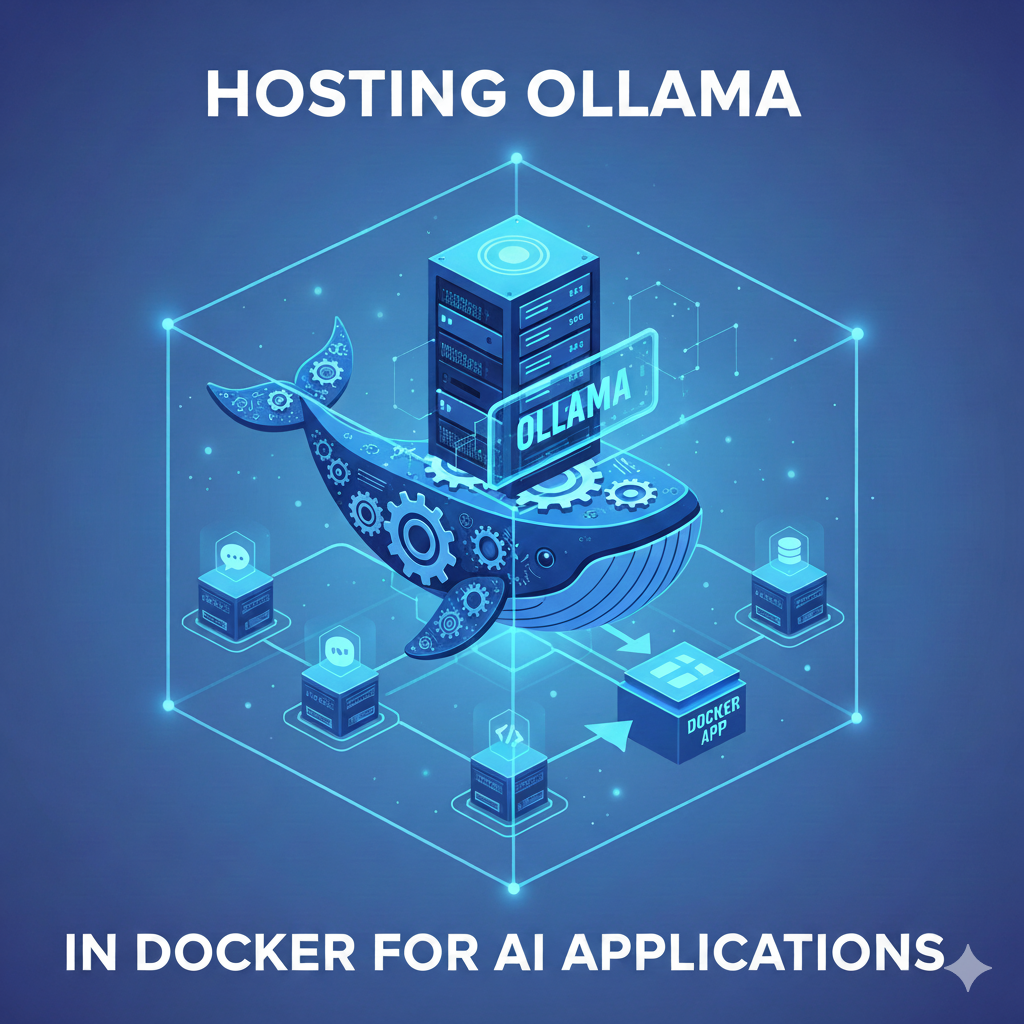
Ollama is a key tool for self-hosting LLM AI systems on your own hardware. This is what some call "Local AI" which is contrasted with "Cloud AI".
Cloud AI is what we use with ChatGPT, Claude, Mistral, and so forth. While these services are convenient, fast, comprehensive, and with new capabilities being introduced every few months, there's a big problem. You're shipping your personal (or corporate) data to a 3rd party service, and trusting that service won't misuse said data.
The large organizations I worked for, Sun Microsystems, and Yahoo, had strict rules about guarding corporate data. At Sun, we were strictly prohibited from hosting any corporate data on any server not owned by Sun. This was to limit the possibility that proprietary data (hardware designs, software code, etc) would leak out.
Clearly using a cloud AI system violates such regulations. A software developer using a cloud AI tool like Claude is literally shipping corporate proprietary data to Claude, and allowing Claude to (re-)write the code.
Local AI is, well, local. It is increasingly possible to run LLMs and related software on a computer in your home. Your data on your hardware, processed by LLMs running on your hardware, with nary a 3rd party service to be seen. My corporate masters at Sun and Yahoo would approve, and would budget for hosting enterprise grade AI hardware in company-owned datacenters. As an individual, my data center is a corner of my desk, and my budget is by necessity small.
Local AI is usually also Open Source AI. That is, we must first have the freedom to install the AI model on our hardware, preferably with no required fee. In an open source AI model, most or all of the artifacts required to build the AI model are available to the public under a recognized open source license, and the model itself is distributed under an open source license.
Local AI can also be called Homelab AI, when it is installed at home.
For this article, I tested everything on a 5th generation Intel NUC previously discussed in Intel NUC's perfectly supplant Apple's Mac Mini as a lightweight desktop computer. It's an older Intel Core i5 CPU, with 16 GB of memory, and 8 TB of SSDs. It's not any kind of speed demon, but it's good enough to test Ollama with a small LLM.
Prerequisites
Ollama
- Binaries for Linux, macOS, and Windows are available at
https://ollama.com/download
- Yes, "Linux" appears to include the Raspberry Pi
- A Docker image is available at
Docker Hub
- This image supports both
linux/amd64andlinux/arm64
- This image supports both
- LLMs compatible with Ollama are available at
- Ollama automatically detects and makes use of GPUs to speed things up.
Docker
- Docker runs on a huge variety of systems, so look up installation instructions for the system you use
- Make sure to use the latest version, and make sure it includes Compose support
- This article was tested using Docker v29.1 on Ubuntu
- Make sure to learn performance tuning on Docker, and how to integrate GPUs to a running container
Memory/GPU/disk
- Ollama runs with the best performance on a modern GPU with lots of VRAM
- Ollama can run on a CPU-only system, but performance will suffer
- A fast CPU, lots of system memory, a fast GPU, or multiple GPUs, with lots of VRAM, will produce the best results
- LLM AI models can be very big, and will require lots of disk space
On my underpowered machine, with a small LLM (gemma3:3b), a relatively simple query took 10-15 minutes to generate a result.
Instead of installing the Ollama command-line tool, we'll be using the ollama/ollama Docker image.
Docker Compose file for Ollama deployment
This Compose file is derived from a docker run command provided in the ollama/ollama README on Docker Hub. It shows mounting the directories to support persisting Ollama configuration, and LLM images downloaded from ollama.com.
services:
  ollama:
    image: ollama/ollama:latest
    # Exporting the 11434 port is optional
    ports:
      - 11434:11434
    volumes:
      - ./dot-ollama:/root/.ollama
      - ./models:/usr/share/ollama/.ollama/models
    networks:
      - ollama

networks:
  ollama:
    external: true
Create a directory such as ${HOME}/docker/ollama, and save this file in that directory as compose.yml.
This does not include GPU support, because the computer I'm using does not have one. Refer to the Docker documentation,
https://docs.docker.com/compose/how-tos/gpu-support/, if you need GPU support.
The ports declaration exposes the Ollama port (11434) to your host machine. Leave this declaration as it is if you need to access Ollama from software running on your host system.
If, instead, your Ollama will only be accessed from other Docker services, you should comment out the ports declaration.
The volume mounts ensure that the two directories created/managed by Ollama are persisted to the host system.
The networks declaration allows other Docker containers to access Ollama without going through the host system. This provides a security boost. If you don't need to access Ollama from outside Docker, leave out the ports declaration and connect any containers that need access to Ollama to the ollama network.
Creating the external Docker network
Run:
docker network create ollama
This creates a virtual network within Docker. This is an excellent way to shield communications between the components of your application from outside prying eyes. A Docker virtual network acts like a LAN segment, but is a virtual thingy within Docker that is somewhat shielded from outside observation.
Starting Ollama and pulling models
Lifecycle commands:
# Start the container
docker compose up -d
# Watch the logging output
docker compose logs -f
# Stop the container
docker compose down
# Pulling the latest Ollama image
docker compose pull
Inside the Ollama container is the same ollama command you might install by downloading from the Ollama website. It is running in serve mode, but there are no LLM images installed.
Testing Ollama within Docker:
# Ensure Ollama is running
docker exec -it ollama-ollama-1 ollama -v
ollama version is 0.13.5

# Install an LLM
docker exec -it ollama-ollama-1 ollama pull gemma3:1b

# List the currently installed LLMs
docker exec -it ollama-ollama-1 ollama list
NAME                        ID              SIZE      MODIFIED
gemma3:270m                 e7d36fb2c3b3    291 MB    3 hours ago
gemma3:1b                   8648f39daa8f    815 MB    3 hours ago
gemma3:3b                   a2af6cc3eb7f    3.3 GB    3 hours ago
gemma3:12b                  f4031aab637d    8.1 GB    3 hours ago
mxbai-embed-large:latest    468836162de7    669 MB    3 hours ago

# Check the currently running LLMs
# Note, the LLMs will exit when they're idle
docker exec -it ollama-ollama-1 ollama ps
NAME    ID    SIZE    PROCESSOR    CONTEXT    UNTIL
These docker exec commands consist of two parts:
- The first part executes on the host machine, and tells Docker to execute a command inside the container.
- The second executes inside the container, and runs the
ollamacommand.
The container name ollama-ollama-1 is a consequence of the Compose file living in the ${HOME}/docker/ollama directory.
The ollama -v command is crucial for determining whether Ollama successfully started.
Interacting with Ollama
In addition to the ollama command-line tool, the ollama serve mode supports a REST-like API. The documentation for this is at:
https://docs.ollama.com/api/introduction
While the ollama -v command can determine if Ollama is correctly running, you can also run this API request:
curl http://localhost:11434/api/generate -d '{
  "model": "gemma3",
  "prompt": "Why is the sky blue?"
}'
To directly interact with a model:
$ docker exec -it ollama-ollama-1 ollama run gemma3:latest
>>> Why is the sky blue?
The blue color of the sky is a fascinating phenomenon caused by a process called **Rayleigh scattering**. Here is a
breakdown of how it works:

**1. Sunlight and Colors:**

* Sunlight appears white, but it is actually made up of *all* the colors of the rainbow – red, orange, yellow,
green, blue, indigo, and violet.  Think of a prism splitting light!

**2. Entering the Atmosphere:**

* When sunlight enters the Earth atmosphere, it collides with tiny air molecules (mostly nitrogen and oxygen).

**3. Rayleigh Scattering:**

* **This is the key:** Rayleigh scattering refers to the scattering of electromagnetic radiation (like light) by
particles of a much smaller wavelength.
* **Shorter wavelengths scatter more:** Blue and violet light have shorter wavelengths than other colors. Because
of this, they are scattered *much* more strongly by these air molecules than red or orange light. It’s like
throwing a small ball (blue light) versus a large ball (red light) at a bumpy surface – the small ball will bounce
around in all directions.
Interestingly the text is generated at a pretty decent rate.
Deploying Docker services with Ollama
Consider this deployment architecture:
@startuml
!include <C4/C4_Deployment>

skinparam backgroundColor white

rectangle "host machine" as hostMachine {
rectangle "ollama network" as ollamaNet {
    node "ollama" as ollama {
        component "Ollama Server" as ollamaServer
    }

    node "client-service" as client {
        component "Ollama Client App" as clientApp
    }

    note right of client
        Connection URL:
        http://ollama:11434
    end note
}

rectangle "proxy network" as proxyNet {
    node "reverse-proxy" as proxy {
        component "Nginx / Traefik" as proxyServer
    }
}
}

cloud "Internet" as internet

clientApp --> ollamaServer : API requests
clientApp --> proxyServer
proxyServer --> internet : HTTPS

@enduml
This is a host machine, on which there is a Docker network named ollama, and two processes for the application. These are the service process (client-service) that connects to Ollama whenever it needs AI support, and the Ollama process. A simple application might have only two containers, as shown here, with one of them providing the interface to the world. That container should be made visible to the world through a reverse proxy.
In most cases the Ollama container should not be exposed to the Internet.
The documentation for the Ollama container has instructions for exposing Ollama through a reverse proxy to the public Internet. Doing so doesn't seem like a good idea, however. What purpose does it serve the application to expose Ollama to the Internet? Hence, in this diagram it is not exposed to the Internet.
In any case, most deployments will be an application connecting to Ollama.
For an application service in a Docker container:
- Ensure that containers are connected to the
ollamanetwork - Use the URL
http://ollama:11434
This relies on the automatically configured DNS names for each container in Docker. Instead of using http://localhost:11434 like most Ollama documentation says, we have two containers each pretending to be a virtualized machine. The DNS name for the Ollama container is ollama, making http://ollama:11434 to be the correct connection URL.
One can see the container name in the docker ps output, it's the last column. On my machine, I see ollama-ollama-1, which would make the URL be http://ollama-ollama-1:11434. We can run this command to inspect all DNS aliases for the container:
docker inspect ollama-ollama-1 \
	--format '{{ json .NetworkSettings.Networks.ollama.DNSNames }}'
["ollama-ollama-1","ollama","c810b30e11f6"]
While ollama-ollama-1 is a DNS name, so is ollama. That means we can use ollama in the connection URL.
When you want to access your Ollama instance from outside Docker, such as connecting the OpenCode AI tool with Ollama:
- Ensure the
portsare declared in the Compose file - Use the URL
http://localhost:11434if the software is running on the same host - Use the URL
http://host-domain-name:11434if the software is running on a machine within the same network
The Ollama documentation claims it is partly compatible with the OpenAI API to make it easier to integrate with other applications.
Resource management and performance
To test my Ollama installation I installed Open Notebook, a Notebook LM clone. I loaded a few web pages as sources into a notebook, and asked a few questions. On my hardware, it generally took 10-15 minutes to create articles answering relatively simple questions.
That was with out-of-the-box Docker, using the Compose file shown earlier, and Ollama configuration, using the gemma3:3b model.
Performance optimization options:
- Docker can make GPUs available to containers. See
https://docs.docker.com/compose/how-tos/gpu-support/
- Docker supports a full range of resource settings (memory, threads, etc). See
docker runflags anddocker composeservice settings for documentation
Ollama is probably tunable as well, but I don't find relevant documentation.
In any case, adding this to the Compose file resulted in some improvement:
services:
  ollama:
    # ...
    mem_limit: 8g
    cpus: 3
Raising the memory limit to 8GB was recognized by Ollama, verified by looking at the logging output. But, that didn't impact execution time by much.
Changing the CPU count to 3 made a significant difference. First, the top program showed the Ollama process was consuming 300% CPU with cpus: 3, but consumed only 200% with the default. Further, the load average went from 2.0 to 3.0. That lowered the execution time to below 10 minutes.
Accessing Ollama Cloud models
Ollama also hosts AI models on its own infrastructure. To see these models, in the Models tab of the Ollama website click on Cloud, which takes you to
Ollama Cloud Models.
To use cloud models, you must have an Ollama account. So first, sign in and setup that account. Second, you'll see a link for Keys. Click on that, and generate a key.
The final step is to browse the available cloud models, and select one.
In the Ollama documentation you see that the required authentication can be stored in an environment variable, OLLAMA_API_KEY. This variable is easy to add to the Compose file:
    environment:
      OLLAMA_API_KEY: 3a559efx2a2m4pbl8e50e7xba1mbp9le.0He3x8acmdpzl1erEXAMPLE
Restart your Ollama container.
You should be able to run:
docker exec -it ollama-ollama-1 ollama run devstral-2:123b-cloud
And make queries against a cloud model.
However, in my testing, for the Open Notebook example, I was able to make one query, which executed extremely fast. But all subsequent queries give Error 401 Unauthorized. While it's possible to use Ollama Cloud in a free account, the low usage limits are a teaser for getting you to start paying a fee.
Conclusion
Installing Ollama brings you a step closer to implementing local AI, and freeing yourself from the cost and personal data intrusions of using Cloud AI.
This requires a fast enough machine to run an LLM that fits your needs. There are two factors that will shortly make local AI more practical:
- Better, faster, and more efficient AI LLM models are being released all the time
- Better machines suitable for home or office AI work are becoming cheaper and more powerful all the time
These directions should converge on more powerful AI capabilities which do not require huge NVIDIA clusters in power-gulping data centers, and which do undecipherable things with our data.
Ollama is not the only game for hosting local AI.
What's needed for local AI is:
- A local platform for running LLM models, Ollama being only one example
- LLMs compatible with your platform, like Ollama, that fit the constraints of your local machine
Most AI tools can access an LLM using the "OpenAI API". Therefore it won't matter if that model is platformed on Ollama or another AI model platform.
What you've accomplished by reading this article:
- Learned about local AI
- Experienced local AI with an easily deployed Ollama instance, using Docker
- Learned about performance tuning of Ollama inside Docker
- Learned how to access Ollama Cloud models