David Herron
Tags: Docker »»»» Artificial-Intelligence »»»» Homelab »»»» Ollama »»»»
The local AI dream can be satisfied with GPUs other than expensive NVIDIA hardware. An AMD Ryzen MiniPC with integrated Radeon GPU and shared memory can run 30B parameter models at usable speeds, for under $1000.
The LocalAI dream, to have useful AI hardware in your home so that our AI chats aren't sent to the cloud, is marred by the idea it requires an old school desktop tower PC with several PCIe slots with expensive NVIDIA cards.
What if a competent home AI machine is an easy-to-buy no-configuration-required mini PC with lots of memory and a CPU with integrated GPU allowing the GPU to use that memory?
I've just added to my homelab uses an AMD Ryzen 7 with AMD Radeon 780M GPU which, using the Unified Memory Architecture, can use some of the 64GB of memory for the GPU.
I run a homelab because of cost and privacy concerns. The several services (NextCloud, Gitea, etc.) I host replace several cloud services ensuring my personal data does not get into the clutches of those large companies. To use AI services (ChatGPT, Claude, etc) also means giving personal data to other large companies.
The goal of Local AI is personal data sovereignty.
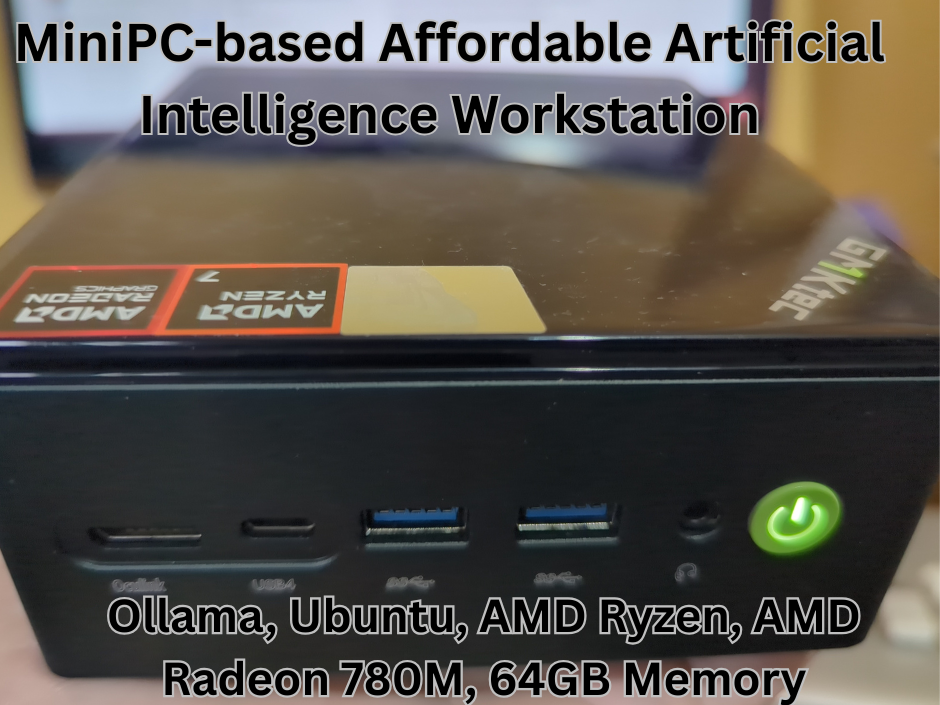
The machine shown in the hero image is a GMKtec K8 Plus, with the AMD Ryzen 7 8845HS CPU, an integrated AMD Radeon 780M GPU, and 64GB of DDR5 5600 memory. It supports dual NVMe (PCIe 4) slots, and multiple high speed ports, including USB4 (40Gbit) and Oculink. Even though the Radeon GPU has little VRAM, the integrated memory architecture gives the GPU direct access to system memory, making it easy to have 32GB of memory for the GPU.
Setting up the K8 Plus for AI work is simply to plug the machine in, install a suitable operating system, and install Ollama or other AI platforms.
That means, a fast CPU with up to 32 GB of GPU RAM means you can run reasonably large LLMs at a decent speed, in a tiny easy-to-setup box. I've successfully run 30 billion parameters models on this machine. Upgrading to 96GB or 128GB would open the door to even larger models, such as 70 billion parameters. And, if you need more GPU horsepower, Oculink opens the door to regular GPU cards.
This article builds on Self-hosting Ollama, in Docker, to support Local AI features in other Docker services.
In that article we explored installing Ollama under Docker on an older Intel NUC with zero GPU capabilities. It worked okay, it proved that an LLM running CPU-only is very slow.
Here we demonstrate that a compact, affordable MiniPC with an AMD Ryzen APU can serve as a capable local AI workstation.
It is also a great basis for implementing local AI data sovereignty.
Updates:
- January 28, 2026 - Updated with additional guidance on memory allocation, and additional performance measurements.
- February 7, 2026 - Added guidance about group permissions on the GPU device files (
/dev/dri). - February 14, 2026 - Added guidance on dedicating GPU memory, to ensure the system dedicates some GPU memory, and adding a swapfile to reduce memory pressure if too many processes are running.
FAQ
How much does an AMD Ryzen/Radeon AI workstation cost? The GMKtec K8 Plus with 64GB of memory currently costs $899. The GMKtec EVO-X2 AI Mini PC, with the AMD AI Max+ 395 that adds a neural processor, costs $1500 for 64GB of memory and $2300 with 128GB of memory.
What LLM models can run on 32GB of memory? Models up to 30 billion parameters are successful, while 70b models fail due to resource limits.
What name does AMD use to describe this shared memory feature? Unified Memory
How does AMD Unified Memory work? In AMD Ryzen CPUs supporting unified memory, the CPU and GPU are on the same silicon die, and share the same memory controller. Hence, both have access to the same DDR5 memory chips.
How can I tell if a specific AMD Ryzen system/CPU supports unified memory? All AMD CPUs with integrated graphics support unified memory. The CPU model number will contain a suffix, like G, HS, and HX, indicating support for unified memory. The specifications sheet will also say Integrated Graphics.
How does the performance compare between an AMD Ryzen with an integrated GPU, and a dedicated NVIDIA GPU? The bottleneck is memory bandwidth. Where the Ryzen with integrated GPU has 80-90 GB/sec bandwidth, a typical NVIDIA card has GDDR6 VRAM running at 300-600 GB/sec. The AMD Ryzen architecture shines in being able to bring more memory to the GPU, and the tight coupling between GPU and CPU.
Can the AMD Ryzen chips share more than 32GB of memory with the GPU? Yes. Add more memory, and the system can share more with the GPU. With a desktop Ryzen system the maximum memory is close to 200GB, allowing one to run massive LLM models. But, the system is still limited by the lower bandwidth between memory and GPU.
What about the NPU in some AMD Ryzen systems? The NPU is not as capable in data processing as the GPU, and it is not supported by AI platform software like Ollama. The primary use for the NPU is low latency background tasks.
Am I limited to the AI models available on the Ollama website? Huggingface is an alternate site for downloading open source AI models. When viewing a model, there is a dropdown menu "Use this model" where one of the choices might be Ollama. This gives you the Ollama command to run that model.
Hardware Overview: GMKtec K8 Plus
The K8 Plus is what we might call a NUC, or a MiniPC, meaning that it is similar to the old-school Mac Minis. It is a small computer, where the components are laptop parts, but instead packaged in a small box with low energy consumption.
While the specs are attractive to gamers or video creators, they're exctly just what is needed to add AI capabilities to a homelab.
Where Apple locks down the Mac Mini to prevent customization by users, modern MiniPCs are easy to open and replace components like storage, memory, and WiFi cards.
Overall specifications:
- Specs:
- AMD Ryzen 7 8845HS
- integrated Radeon 780M GPU
- maximum 96GB DDR5 5600
- Dual NVMe (PCIe 4) slots, 2x USB3, USB4 (40Gbit), Oculink
- Key feature: Shared memory architecture - GPU can use system RAM as VRAM
- This means up to 32GB can be allocated to GPU, enabling larger models
- Cost:
- $399 for barebones
- $689 for 32GB memory 1TB SSD
- $899 for 64GB memory 1TB SSD
- Small form factor, low power consumption (35-70 Watts), no configuration required
Contrast this with traditional "local AI" setup: desktop tower with expensive NVIDIA cards. Power consumption is much higher, and the full size GPU cards are much more expensive.
The box I purchased has 64GB of memory, and was purchased in Europe (where I live currently) for 799 euros, direct from GMKtec. In Europe (on amazon.de) I see 64 GB SODIMM kits (2x 32GB) for about $1000USD equivalent. However, in the USA (on amazon.com), I see the same 64 GB SODIMM kits for about $600-700 USD.
What this means is that for the price of the memory, I bought a complete, assembled and tested, computer system, with a warranty. What a deal.
Why AMD Ryzen APUs for Local AI?
I've been researching different options for a Local AI system for several months. The sources are split between three approaches:
- Build a tower/desktop PC, such as starting with a used Dell office PC, into which you stuff one or more NVIDIA cards
- Demand for NVIDIA cards has driven their price into the stratosphere, plus they incur large power consumption
- AMD GPU cards are less expensive, and also less supported by AI platform software, but as we'll see later many AMD GPUs are supported by ROCm which in turn is supported by Ollama
- MiniPCs with either integrated GPUs and sharing system memory with the GPU, or with Oculink for an external PCI-based GPU
- The extreme scenario is the recent breakthrough of networking 4x M3 Ultra Mac Studios over ultra-high-speed built-in networking on the Thunderbolt ports. The maximum configuration is 1.5 terabytes of memory and multiple NPUs and GPUs for running massive AI models
- A little less extreme are the latest machines with Intel Core Ultra 9 285H or AMD Ryzen™ AI Max+ 395 CPUs, supporting 128GB memory.
- Specialty machines like the NVIDIA Spark with coupled ARM CPU and NVIDIA GPU chips
Of those choices, the specialty machines, and desktop/tower PCs with multiple GPUs, are way out of my price range.
Some MiniPC CPUs allow system RAM to be used by the GPU. For the K8 Plus, with 64 GB of memory, it means 32GB can be used for the GPU. Buying 2x 16GB VRAM cards from NVIDIA might cost $1000 or more. This is again a win for the K8.
With 32GB of GPU memory, we can run mid-tier models (27B parameters or more) at a cost much lower than buying multiple NVIDIA boards.
The key feature is sharing system memory with the GPU.
The K8 Plus might be the lowest cost computer with this feature.
Price conscious homelab owners probably prefer MiniPCs over tower PCs, and will find the K8 Plus very familiar.
Installing Ubuntu 24.04
I'm not a Windows guy. The K8 comes preinstalled with Windows 11, and I only booted that to the first screen of the installer to ensure the computer is running.
I wanted this machine to be more of a server, that I'd stick on a shelf and use by SSH. Therefore, I started by trying to install and configure Debian 13. I also looked at ProxMox, which looks very interesting. After that I tried Linux Mint Debian Edition, which looks like it has a fine user environment. But, I eventually settled on installing Ubuntu 24.04. I've been using Ubuntu for years, and my two other homelab machines are also running Ubuntu.
There's nothing special at this stage. Download the installer from ubuntu.com, burn it to a thumb drive, boot from the thumb drive, and run the installer.
BIOS Configuration (if needed)
You might geek out tweaking this or that BIOS setting, but that's not me.
There's no need to enable system RAM sharing, because the CPU automatically does it.
It may be necessary to dedicate some GPU memory so you don't accidentally starve Ollama of GPU memory and it instead starts delegating AI tasks to the CPU. On the AMD Ryzen 7 in my K8 plus, that meant booting into BIOS and finding the UMA Frame Buffer Size setting.
Its default value was 8 GB, and I moved it to 16 GB. I understand that the CPU and BIOS will default this based on system memory.
Because more UMA memory can be allocated by apps like Ollama, it is still able to use more GPU memory.
I understand the maximums are:
- 64 GB systems: Max UMA = 48 GB.
- 128 GB systems: Max UMA = 96 GB. Because I will treat this machine as a server, I want it to stay running all day and to automatically reboot when the power is turned on. The BIOS has a setting for this purpose.
Dedicating a machine like this as an AI server requires limiting the number of other processes to keep enough memory free so Ollama can continue to allocate GPU memory.
Installing Docker
I use Docker to manage containerized software. For this PC I thought about, and ruled out, alternatives such as Incus and ProxMox. While Incus is a very promising project, reviewing the documentation showed it would be far more complex than I wanted to deal with at this time.
Also, the ROCm drivers are supported on specific select Linux distros, including Ubuntu. While ROCm doesn't doesn't support the specific machine I have, they are needed for other AMD systems.
Therefore, Docker. On Ubuntu.
Do not use the Docker packages provided by Ubuntu. Instead go to the official Docker documentation.
See:
https://docs.docker.com/engine/install/ubuntu/
For detailed install instructions: Installing Docker Engine or Desktop on Ubuntu, macOS or Windows
Uninstall old packages:
sudo apt remove $(dpkg --get-selections docker.io docker-compose \
docker-compose-v2 docker-doc podman-docker containerd runc | cut -f1)
Then set up your system to use the Docker repository
# Add Docker's official GPG key:
sudo apt update
sudo apt install ca-certificates curl
sudo install -m 0755 -d /etc/apt/keyrings
sudo curl -fsSL https://download.docker.com/linux/ubuntu/gpg -o /etc/apt/keyrings/docker.asc
sudo chmod a+r /etc/apt/keyrings/docker.asc

# Add the repository to Apt sources:
sudo tee /etc/apt/sources.list.d/docker.sources <<EOF
Types: deb
URIs: https://download.docker.com/linux/ubuntu
Suites: $(. /etc/os-release && echo "${UBUNTU_CODENAME:-$VERSION_CODENAME}")
Components: stable
Signed-By: /etc/apt/keyrings/docker.asc
EOF

sudo apt update
And, install the Docker packages for Ubuntu
sudo apt install docker-ce docker-ce-cli containerd.io \
	docker-buildx-plugin docker-compose-plugin
To verify that Docker is integrated with the system:
sudo systemctl status docker
And, launch the Docker service
sudo systemctl start docker
Test that Docker is running:
sudo docker run hello-world
This proves that Docker is installed and usable.
Some post-install steps for Linux are required:
https://docs.docker.com/engine/install/linux-postinstall/
You may want to not use sudo to run Docker commands. That requires your user ID to be in the docker group so it has access to the Docker socket.
sudo groupadd docker
sudo usermod -aG docker $USER
After this you'll need to log out, then log back in, so that your login shells are in the Docker group.
docker run hello-world
This, without sudo, should now work.
AMD GPU Setup for AI Workloads
Most AI software runs against NVIDIA GPUs, hence the high price for those devices. The economics we learned in High School, supply/demand, means the high demand for NVIDIA GPUs must result in the high prices we are seeing.
AMD has created ROCm, which is their CUDA equivalent. This should be powerful technology, and is one of the reasons why I abandoned the idea of using Proxmox or an OS other than Ubuntu. AMD supplies ROCm for Ubuntu, not Debian, not LMDE, and not Proxmox.
However, the CPU in the K8 Plus is not supported by ROCm. It might be better to carefully check the list of supported CPU/GPUs for ROCm, and install it only if supported for your machine.
My K8 Plus has both ROCm and Vulkan installed, which leads to an issue with Ollama:
- Ollama checks backends in order: ROCm > Vulkan > CPU
- If ROCm is installed but doesn't support your GPU, Ollama silently falls back to CPU!
That means, one must force Ollama to use Vulkan. We'll see how to do that in a moment.
Vulkan is a Graphics API that can also be used for compute, such as AI LLM computations in the GPU. It is an open source library supporting a wide range of GPUs including the Radeon 780M in the K8.
sudo apt install vulkan-tools
On my system, Ollama sees ROCm, tries to use it, which fails, and then it proceeds to use the CPU to run the LLM model.
In the following sections, to fix this problem, we'll learn how to force Ollama to use Vulkan, and also learn how to monitor GPU and CPU usage.
Installing and Configuring Ollama (Native)
Ollama is not available through the apt package system used by Debian or Ubuntu.
Instead, you go to http://ollama.com and click on the Download button. There you're told to run this:
curl -fsSL https://ollama.com/install.sh | sh
There's also a link to a page with manual installation instructions:
https://docs.ollama.com/linux This page has useful details.
To test that it's installed correctly:
ollama run gemma3:latest
This will start an interactive chat question, and you can test that it works like so:
docker exec -it ollama-ollama-1 ollama run gemma3:latest
>>> write me a story about an enlightened mermaid who rides through
>>> all of time and space on a unicycle

The salt spray never bothered Coralia. It was a familiar, comforting tickle on
her iridescent scales, a constant reminder of the boundless ocean she’d known
since… well, since before time itself really coalesced. Coralia was not just
a mermaid; she was, for lack of a better word, enlightened. Not in a serene,
meditative way, but in a gloriously chaotic, utterly joyful way. And her
method of experiencing this joy? A single, bright crimson unicycle.
How do we know whether this ran on the CPU or GPU?
Tools for monitoring CPU and AMD GPU
Install:
sudo apt install htop
sudo apt install radeontop
sudo apt install nvtop
These run in the terminal and offer different ways of viewing CPU and GPU.
Another tool, amdgpu_top, is available at
https://github.com/Umio-Yasuno/amdgpu_top, and shows a lot of detailed data.
The ollama ps command tells you the percentage of CPU and GPU memory consumed by loading a model:
$ ollama ps
NAME            ID           SIZE  PROCESSOR       CONTEXT UNTIL
qwen3-coder:30b 06c1097efce0 28 GB 64%/36% CPU/GPU 96000   4 minutes from now
This means 36% of qwen3-coder:30b is running in the GPU.
The free command also helps with understanding the available memory.
david@nuc3:~$ free
          total     used     free   shared buff/cache available
Mem:   62567680 51261484   536848    31908   11457220  11306196
Swap:   8388604   831824  7556780
The two free column shows free memory, and the used column includes GPU memory as well as cached files. The buff/cache column shows the memory consumed by the operating system file cache.
Exiting the ollama command, and trying another model:
$ ollama run deepseek-r1:32b --verbose
Error: 500 Internal Server Error: model requires more system memory (33.1 GiB) than is available (28.5 GiB)
$ ollama ps
NAME    ID    SIZE    PROCESSOR    CONTEXT    UNTIL
$ free
         total     used     free   shared  buff/cache available
Mem:  62567680 23175836 28615192    31908    11464584  39391844
Swap:  8388604   831824  7556780
Notice how the free value aligns with the available (28.5 GiB) in the error.
One can also run olmo-3:32b and glm-4.7-flash:latest after deepseek-r1:32b gives that error. These are 32b models, but the memory requirements are different.
One can force Linux to free the file cache this way:
$ echo 1 | sudo tee /proc/sys/vm/drop_caches
[sudo] password for david:
1

$ free
         total     used     free   shared  buff/cache available
Mem:  62567680 23178904 39579564    31908      494068  39388776
Swap:  8388604   831200  7557404

$ ollama run deepseek-r1:32b --verbose
Error: 500 Internal Server Error: model requires more system memory (41.5 GiB) than is available (38.9 GiB)
The drop_caches file forces Linux drop files from the file cache, as we see from the buff/cache column. But, that still doesn't satisfy the ability to load deepseek-r1:32b into memory. We can still run olmo-3:32b and glm-4.7-flash:latest after getting that error.
The drop_caches tactic should only be used during testing, and not during routine use.
Verifying GPU Usage
Getting back to the question, is the CPU or GPU being used, we can:
- Open a terminal window, run
htop - Open a terminal window, run
radeontopornvtop - Run Ollama, and ask it something complex (so that you'll be able to watch for awhile what happens)
If the GPU is activated, then radeontop or nvtop will show activity, while htop will show none.
If the GPU is not activated, then it's the other way around, with htop showing activity.
Check the GPU device permissions
The nvtop command might tell you there's no GPU to monitor. Or, running amdgpu_top might throw a screwy error.
Quick sanity checks:
- Check that the GPU is visible on PCIe:
lspci | grep -Ei 'vga|display'
- Check that the amdgpu kernel module is loaded:
lsmod | grep amdgpu
- Check DRM devices:
ls -l /dev/dri- You should see something like
card0andrenderD128.
For the first two, I think you should be looking in system logs, and checking that the device drivers are correctly installed. In my case, it was the third issue that came up.
Notice:
$ ls -l /dev/dri
total 0
drwxr-xr-x  2 root root         80 Feb  7 17:46 by-path
crw-rw----+ 1 root video  226,   1 Feb  7 17:46 card1
crw-rw----+ 1 root render 226, 128 Feb  7 17:46 renderD128
Look closely you see that /dev/dri/card1 and /dev/dri/renderD128 can be read/written only by the root user, or by the video and render groups.
Clearly an application process that is not in the video or render groups will have a hard time using the GPU. Hence, for Ollama to run LLMs on the GPU, it must be running in those groups.
You can test this assertion with
sudo amdgpu_topsudo nvtop
If these commands do not work as your own user ID, but do work under sudo, then you have verified it is a permissions problem with the device files.
We could, and should, use the groupadd command to add ourselves to those groups. But, since Ollama is running under Docker, let's see how to fix this using Docker Compose:
    devices:
      - /dev/kfd:/dev/kfd
      - /dev/dri:/dev/dri
    group_add:
      - "992"
      - "44"
This makes sure the two groups are active for the Ollama service process. After restarting Ollama, it should start using the GPU.
Testing Ollama running native on a host with AMD Radeon GPU
DETAIL: When we installed Ollama above, it installed an Ollama service to run ollama serve in the background. Hence, when we modify the Ollama configuration, we must shut down that service, edit the service configuration, then restart the service, then rerun our test.
Earlier, we installed Ollama natively on the computer, ran a test query, and watched with htop and nvtop to see whether the GPU is engaged.
If the GPU is engaged, then there's nothing more to do. The rest of this section covers how to change the configuration to engage the GPU.
Forcing Native Ollama to use Vulkan
We've arrived in this section of the article because Ollama fails to engage the GPU on your AMD system with Radeon GPU. This happens because ROCm is installed and the GPU is not supported by ROCm, and Ollama falls back to the CPU.
To get Ollama to instead use Vulkan requires two steps:
- Installing Vulkan (already covered earlier)
- Forcing Ollama to ignore ROCm
The technique we'll use is to override the LD_LIBRARY_PATH environment variable. This variable is recognized by the Linux C libraries, and it lists directories to search for shared libraries. The idea is to give Ollama a directory list which does not include the ROCm shared libraries.
To understand this, run these commands:
find /usr -name '*[rR][oO][cC][mM]*' -print
find /usr -name '*[vV][uU][lL][kK]*' -print
What we're looking for is the location for ROCm and Vulkan files. On my system, I see:
- ROCm shared libraries are installed in
/usr/local/lib/ollama/rocm, meaning they're part of the Ollama package - Vulkan shared libraries are installed in
/usr/lib/x86_64-linux-gnu/, meaning they were part of thevulkan-toolspackage we installed separately
The process for editing the Ollama service definition is to run these commands:
sudo systemctl stop ollama
sudo systemctl edit ollama
… edit the service configuration
sudo systemctl daemon-reload
sudo systemctl start ollama
The edit command automatically starts a text editor with which you can edit the service definition file. Add the following:
[Service]
Environment="LD_LIBRARY_PATH=/usr/lib/x86_64-linux-gnu:\
         /lib/x86_64-linux-gnu"
Environment="OLLAMA_VULKAN=1"
This is wrapped for easier viewing. The LD_LIBRARY_PATH setting tells the Ollama process service to not look in the directory containing ROCm libraries. By not seeing the ROCm libraries, Ollama won't initialize its ROCm support.
The OLLAMA_VULKAN setting tells Ollama to use Vulkan.
Write out and save the text, then run the two other systemctl commands.
Now, when you run Ollama and give your test prompt, you should see that the GPU is engaged.
If you still don't see the GPU is engaged, you'll need to do further troubleshooting. It will be helpful to view the Ollama logging output. The simplest way is to run the Ollama server directly at the command line.
sudo systemctl stop ollama
sudo OLLAMA_VULKAN=1 \
   LD_LIBRARY_PATH=/usr/lib/x86_64-linux-gnu:/lib/x86_64-linux-gnu \
   ollama serve
The first command stops the Ollama service process. The second runs the actual ollama serve command in a way where you can:
- See the logging output
- Easily try different environment variables for setting options
Once you've determined a combination of settings which works on your machine, bring those settings into the service configuration file.
Installing Ollama Under Docker with AMD GPU
You may want your Ollama instance to run as a native service. If so, ignore this section.
My preference is to run such services under Docker, to make use of Docker's service isolation.
The process to launch Ollama in Docker is relatively easy. The trickiest step is importing the device files for the AMD Radeon GPU into the Docker container. Otherwise the Docker configuration is straight-forward.
The first step is to disable the native Ollama service:
sudo systemctl stop ollama
sudo systemctl disable ollama
Because we'll be running Ollama under Docker, we don't also need Ollama as a native service.
Next, create directories:
mkdir -p ~/docker/ollama
mkdir -p ~/docker/ollama/dot-ollama ~/docker/ollama/models
I keep all Docker services on a given machine in the directory /home/$USER/docker with a subdirectory for each service. It's useful to locate Docker service configuration and data all in sibling directories. Those directories do not have to be located in /home/$USER/docker, put them wherever you see fit. On a VPS that I rent, I placed them in /opt instead.
Next, create a Docker network to control access to Ollama
docker network create ollama
The ollama network will then be used by any Docker container which needs access to the Ollama service.
Next, create ~/docker/ollama/compose.yml:
services:
  ollama:
    image: ollama/ollama:latest
    # ports:
    #  - 11434:11434
    volumes:
      - ./dot-ollama:/root/.ollama
      - ./models:/usr/share/ollama/.ollama/models
    devices:
      - /dev/dri:/dev/dri
      # - /dev/kfd:/dev/kfd
    environment:
      - OLLAMA_VULKAN=1
      # The LD_LIBRARY_PATH is usually not needed in this case
      # - LD_LIBRARY_PATH=/usr/lib/x86_64-linux-gnu:/lib/x86_64-linux-gnu
      # - OLLAMA_API_KEY: key text
    networks:
      - ollama

networks:
  ollama:
    external: true
This image, ollama/ollama, does not contain ROCm support. If you desire to have ROCm, add the :rocm tag instead of :latest. You might find it desirable to pin on a specific release number. The current release as of this writing uses the tags :0.14.3 for the non-ROCm image, and :0.14.3-rocm for the ROCm image.
The two volume mounts make sure important data is preserved when you update the container to the latest release.
Controlling access to the Ollama instance, using Docker
By default, Ollama listens on the port number, 11434. This compose file limits access to that port to other containers on the ollama network.
That's okay if all you want is to, for example, host OpenWebUI on the same host. In that case, nobody needs to have direct access to Ollama, because they'll be using OpenWebUI as a local-only equivalent to ChatGPT.
I've configured my homelab to export an OpenWebUI instance to the world so I can access it when away from home.
But, there are other scenarios for who/what needs to access your Ollama instance. Each scenario requires different Docker configurations.
Four access models to consider:
- Limit Ollama access solely to Docker containers
- Limit Ollama access solely to the host machine
- Limit Ollama access solely to the local network
- Allow Ollama access to anywhere on the Internet
Docker-only access to Ollama
Scenario 1 is covered by the Compose file shown above. Having no ports declaration means the Ollama port is not visible on the host machine. But it will be visible on Docker internal networks, like the ollama network declared in the Compose file.
For these other scenarios, it's useful to review the ports declaration in the Compose documentation:
https://docs.docker.com/reference/compose-file/services/#ports
Local-host-only access to Ollama
For scenario 2, use the 127.0.0.1: prefix in the ports definition:
ports:
    - 127.0.0.1:11434:11434
This exposes the Ollama port solely to the host machine.
Opening locally hosted Ollama to the public Internet
For scenario 4, simply leave off the prefix:
ports:
    - 11434:11434
Software on any computer which can reach the server where Ollama is installed can access the Ollama port. Perhaps a homelabber would open the Ollama port in their router, so that the 11434 port is visible to the Internet.
I'm having a hard time imagining why someone would expose their Ollama port to the public Internet. But it's a possible scenario, and that's how to do it.
Local network access to the local Ollama
For scenario 3, we need to do some thinking. The Docker Compose documentation does not address this case, meaning it does not show what prefix to use in the ports declaration to limit access to hosts on a given subnet.
My local AI system (qwen3-coder:30b), when asked about this issue, gave me these ufw firewall rules:
# Allow traffic from your home network (192.168.8.0/24) to port 11434
sudo ufw allow from 192.168.8.0/24 to any port 11434

# Allow loopback traffic (essential for local services)
sudo ufw allow from 127.0.0.0/8 to any port 11434

# Enable UFW
sudo ufw enable

# Verify rules
sudo ufw status verbose
I haven't tested it, but this looks reasonable. The ufw command manages a firewall system built-in to Ubuntu, and is an excellent tool for improving security.
After setting this up, it can be tested from another host on your network this way:
curl -X GET http://192.168.8.x:11434/api/tags
This should return a big block of JSON.
Using an SSH tunnel to access Ollama
Consider a scenario where an individual who wants to access, from a remote host, an Ollama instance on another machine where Ollama uses the 127.0.0.1:11434:11434 export. In that case, the Ollama instance would be available solely on that local host. But, that individual is running software on another host which needs access to that Ollama instance.
This is a point-to-point scenario, from that laptop to the server where Ollama is deployed.
Point-to-point service access is an excellent use-case for SSH tunnels.
SSH tunnels require a password-less SSH connection between two machines, which are packaged as a TCP/IP tunnel between those machines. As an SSH service, the tunnel is automatically encrypted, and is very efficient.
An SSH tunnel is constructed like so:
ssh -N -L 11434:127.0.0.1:11434 Ollama
For this to work, an entry must exist in their ~/.ssh/config defining the Ollama host:
Host Ollama
    HostName 192.168.8.15
    User david
    # IdentityFile ~/.ssh/ollama.pem
The HostName field can be either a domain name, or an IP address. The User field is the user name to use in setting up the SSH connection. It's important for this user to have password-less SSH access to that host. The IdentityFile can be used if necessary.
This person has Ollama installed on their computer, but has disabled the local Ollama server. Therefore, they'd have the ollama command available, which by default connects to http://localhost:11434. That will then traverse the SSH tunnel to access the remote Ollama server, resulting in:
$ ollama list
NAME                        ID              SIZE      MODIFIED
gemma3:latest               a2af6cc3eb7f    3.3 GB    46 hours ago
bge-m3:567m                 790764642607    1.2 GB    2 days ago
nomic-embed-text:latest     0a109f422b47    274 MB    2 days ago
mxbai-embed-large:latest    468836162de7    669 MB    2 days ago
devstral-small-2:24b        24277f07f62d    15 GB     2 days ago
phi4:14b                    ac896e5b8b34    9.1 GB    2 days ago
phi3:14b                    cf611a26b048    7.9 GB    2 days ago
qwen3-coder:30b             06c1097efce0    18 GB     2 days ago
gpt-oss:20b                 17052f91a42e    13 GB     2 days ago
ministral-3:14b             4760c35aeb9d    9.1 GB    2 days ago
gemma3:27b                  a418f5838eaf    17 GB     2 days ago

$ ollama run gpt-oss:20b
>>> Write me a story about an enlightened mermaid who travels through the univer
... se on a unicycle
Thinking...
The user wants a story: "an enlightened mermaid who travels through the
universe on a unicycle". So we need to write a creative story, perhaps
whimsical, magical. An enlightened mermaid suggests wisdom, maybe a
meditation perspective. A unicycle traveling through the universe? A
cosmic unicycle? That is an interesting image. The mermaid travels beyond
the ocean, perhaps into space, traveling through planets, stars, etc., on
a unicycle. Maybe a narrative about journey, discovery,
self-enlightenment, and the cosmos.

...
Using a local or remote Ollama instance with OpenCode
We want to not only use the ollama command-line tool, but to use Ollama with various tools. A software developer might like OpenCode, which is a terminal-oriented tool aimed at software developers. It can be configured to connect with any LLM hosted by any AI provider. OpenCode is easily usable with a local Ollama instance.
With OpenCode installed, edit the file ~/.config/opencode/opencode.json and add a provider section like this:
    "ollama-local": {
      "npm": "@ai-sdk/openai-compatible",
      "name": "Ollama Local",
      "options": {
        "baseURL": "http://localhost:11434/v1",
      },
      "models": {
        "gemma3:latest": {
          "name": "gemma3:latest",
          "reasoning": true
        },
        "gemma3:27b": {
          "name": "gemma3:27b",
          "reasoning": true
        },
        "gpt-oss:20b": {
          "name": "gpt-oss:20b",
          "reasoning": true,
          "tools": true
        },
        "ministral-3:14b": {
          "name": "ministral-3:14b",
          "reasoning": true,
          "tools": true
        }
      }
    },
Inside OpenCode, select one of these models using the /models command. In OpenCode we can easily switch between LLMs using /models.
The baseURL value can of course be any required URL. In my case, the Ollama service is running on the K8 miniPC, and I am running OpenCode on my laptop. An SSH tunnel was used to make the connection, as described earlier.
I did have some trouble getting this going. After studying the logs (docker compose logs -f) looking for warning or error messages, the problem seemed to be the size of the context window.
To fix that add the variable OLLAMA_CONTEXT_LENGTH to the Ollama server configuration, with the value 32000 or more. In the Compose file, this means:
	# ...
    environment:
	    # ...
        OLLAMA_CONTEXT_LENGTH: 32000
	# ...
This should have an added benefit of greatly improved responses.
Using a local or remote Ollama instance with Claude Code
Ollama v0.14.0 and later is compatible with the Anthropic Messages API, making it usable from Claude Code. Setup is trivially easy.
As with OpenCode, we'll be using an access URL between Claude Code and the Ollama instance. An SSH tunnel may be useful in this case, as well.
With that in mind, let's proceed by first installing Claude:
curl -fsSL https://claude.ai/install.sh | bash
Test by running:
claude --version
Then, add these environment variables to your terminal:
export ANTHROPIC_AUTH_TOKEN=ollama
export ANTHROPIC_BASE_URL=http://localhost:11434
Then, launch Claude specifying one of the models you've installed in Ollama:
claude --model gpt-oss:20b
You can try different models easily by changing the model name.
When Claude launches, it will show the model name, and by the way say that you can use /model to switch to Claude's own models.
And you can test it by running a query, while running nvtop to ensure the GPU is being used:
write a function to compute Fibonacci numbers
● Here’s a compact Python function that returns the n‑th Fibonacci number (0‑based
  indexing):

def fibonacci(n: int) -> int:
      """
      Return the n‑th Fibonacci number.

      Parameters
      ----------
      n : int
          Index of the Fibonacci sequence (non‑negative).

      Returns
      -------
      int
          The n‑th Fibonacci number.
      """
      if n < 0:
          raise ValueError("n must be a non‑negative integer")
      a, b = 0, 1
      for _ in range(n):
          a, b = b, a + b
      return a

You can call it as:

print(fibonacci(10))  # 55

Feel free to adapt it to your preferred language or adjust the indexing scheme.
✻ Churned for 1m 29s
But, switching between models seems to not be as fluid as it is with OpenCode:
❯ /model
  ⎿  Set model to opus (claude-opus-4-5-20251101)

❯ write a function to compute Fibonacci numbers
  ⎿  API Error: 404 {"type":"error","error":{"type":"not_found_error","message":"model
     'claude-opus-4-5-20251101' not found"},"request_id":"req_2aa2e5f53d189037c41b6421"}
Switching back to use Opus with Claude Code required exiting the application, and unsetting the environment variables:
unset ANTHROPIC_AUTH_TOKEN
unset ANTHROPIC_BASE_URL
After which Claude Code said it was using Opus.
That you have to exit the application to switch models is far less convenient than in OpenCode where you simply use /models to select another.
Testing GPU Access in Docker
Ensuring that Ollama running inside Docker uses the GPU uses the same tools we used earlier. Namely, run htop in one terminal window, and nvtop in another, then connect to Ollama and ask it a complex question.
Troubleshooting tips for using an integrated AMD Radeon GPU in Docker
If amdgpu is not loaded, nothing can talk to the card. Run:
lsmod | grep amdgpu
Check Vulkan. The program vulkaninfo prints a full list of devices and the driver stack.
vulkaninfo | grep -i "device name"
# or just
vulkaninfo | grep "Device 0"
You can install vulkaninfo inside the Ollama container by running:
docker exec -it ollama bash
# inside the container
apt-get update && apt-get install -y vulkan-utils
vulkaninfo | grep -i "device name"
Possibly add these volume mounts to the Compose file:
     - /usr/share/vulkan/icd.d:/usr/share/vulkan/icd.d:ro
     - /etc/vulkan/icd.d:/etc/vulkan/icd.d:ro
Possibly add OLLAMA_LOG_LEVEL: debug to the environment variables.
Possibly add this to the Ollama service definition in the Compose file:
    group_add:
      - video
      - render
Intermittent failure to load an AI model
You might see this error:
$ ollama run qwen3:30b
Error: 500 Internal Server Error: llama runner process has terminated: signal: killed
OpenWebUI will also show a similar error. Running at the command-line helps to validate the error.
You might find a smaller model runs, but is allocated to CPU memory rather than GPU memory:
$ docker exec -it ollama-ollama-1 ollama run gemma3:latest
>>> hello
Hello there! How’s your day going so far? Is there anything I can help you with today? 😊
$ ollama ps
NAME          ID           SIZE   PROCESSOR CONTEXT UNTIL
gemma3:latest a2af6cc3eb7f 6.2 GB 100% CPU  96000   4 minutes from now
Adding these environment variables to the Compose file surfaces more debugging information:
      AMD_LOG_LEVEL: 3
      OLLAMA_DEBUG: 1
Running docker compose logs -f lets you see the logging output from Ollama. You might find this message:
time=2026-02-13T23:29:49.648Z level=DEBUG source=server.go:1057 msg="insufficient VRAM to load any model layers"
Further in the logging you might find:
time=2026-02-13T23:29:53.022Z level=DEBUG source=device.go:245 msg="model weights" device=CPU size="17.3 GiB"
time=2026-02-13T23:29:53.022Z level=DEBUG source=device.go:256 msg="kv cache" device=CPU size="8.8 GiB"
time=2026-02-13T23:29:53.022Z level=DEBUG source=device.go:267 msg="compute graph" device=CPU size="173.8 MiB"
time=2026-02-13T23:29:53.022Z level=DEBUG source=device.go:272 msg="total memory" size="26.2 GiB"
...
time=2026-02-13T23:29:53.022Z level=INFO source=ggml.go:494 msg="offloaded 0/49 layers to GPU"
This is a system under memory pressure.
One remedy is to preallocate system memory to the GPU in BIOS settings, as discussed earlier.
Afterward you can see the impact this way:
$ free -m
       total   used   free  shared  buff/cache   available
Mem:   47995  11540   3679      39       33398       36455
Swap:   8191      0   8191
Total system memory 64GB, minus 16GB reserved under UMA Frame Buffer Size leaves 48GB of memory, as shown here.
Another check is for swap memory:
$ swapon --show
NAME      TYPE SIZE USED PRIO
/swap.img file   8G  60K   -2
Swap memory does not affect GPU memory. But you may accidentally run too many non-GPU processes. That would consume system memory that might otherwise be used by the GPU and cause Ollama to offload some AI model execution to the CPU.
It's possible to add another swapfile to increase swap memory.
The necessity of pinning Ollama to a specific version
Vulkan support in Ollama is treated as experimental. You may find that Vulkan support breaks in a specific Ollama version only to be fixed in a later release.
Rather than using image: ollama/ollama:latest, you can use a tag like :0.15.5 to stay on a specific version that's known to work for you.
Performance and Capabilities
Don't expect performance and capabilities on-par with the cloud AI platforms. The results we get are very good, but don't expect a 30 billion parameter model to match the depth available through the Big AI providers.
Our goal at this stage of Local AI is to keep our data out of the hands of Big AI while using AI models that are good enough.
The key is that certain AMD CPUs support memory sharing with the integrated GPU. That's the case of the GMKtec K8 Plus. It results in a GPU with 32 GB of GPU memory. In NVIDIA land, that requires two or more GPU cards at a high cost.
So far it seems that 30 billion parameter models are the upper limit. At 30 billion parameters we are able to get interesting results at reasonably good performance.
SIDE NOTE: GMKtec's cooling solution in the K8 Plus is amazingly quiet.
But, you probably want some numbers. Not having proper LLM benchmarking skills, the best I know is to run the Ollama CLI this way to coax it into showing these values.
ollama  run qwen3-coder:30b --verbose ... "Query"
... interesting results
total duration:       25.98442561s
load duration:        63.226439ms
prompt eval count:    18 token(s)
prompt eval duration: 443.321723ms
prompt eval rate:     40.60 tokens/s
eval count:           758 token(s)
eval duration:        25.223058845s
eval rate:            30.05 tokens/s
What follows is a table listing the results of running the same query (write a python function to compute Fibonacci numbers) on several LLMs where the query is made on the same machine. Like so:
ollama  run qwen3-coder:30b --verbose \
  "write a python function to compute the Fibonacci number for an input value n"
Benchmark results, Ollama on AMD Ryzen/Radeon system
Each model is given one run with results pasted into this table.
| Model | Prompt Eval | Tokens | Rate | Eval | Tokens | Rate |
|---|---|---|---|---|---|---|
| devstral-small-2:24b | 8.706717724s | 565 token(s) | 64.89 tokens/s | 1m56.649362852s | 639 token(s) | 5.48 tokens/s |
| gemma3:latest (7b) | 283.687696ms | 19 token(s) | 66.98 tokens/s | 36.18430835s | 877 token(s) | 24.24 tokens/s |
| gemma3:27b | 858.517958ms | 19 token(s) | 22.13 tokens/s | 3m12.811900264s | 836 token(s) | 4.34 tokens/s |
| glm-4.7-flash:latest | 580.375556ms | 19 token(s) | 32.74 tokens/s | 36.954888457s | 633 token(s) | 17.13 tokens/s |
| gpt-oss:20b | 806.399719ms | 77 token(s) | 95.49 tokens/s | 1m3.821511933s | 1264 token(s) | 19.81 tokens/s |
| ministral-3:14b | 4.661568466s | 564 token(s) | 120.99 tokens/s | 1m2.018961088s | 585 token(s) | 9.43 tokens/s |
| olmo-3:32b | 3.128089346s | 37 token(s) | 11.83 tokens/s | 17m10.334739272s | 2939 token(s) | 2.85 tokens/s |
| phi3:14b | 366.172587ms | 19 token(s) | 51.89 tokens/s | 38.842898822s | 388 token(s) | 9.99 tokens/s |
| phi4:14b | 578.660557ms | 20 token(s) | 34.56 tokens/s | 1m4.907088283s | 549 token(s) | 8.46 tokens/s |
| qwen3-coder:30b | 446.530517ms | 18 token(s) | 40.31 tokens/s | 23.482849786s | 707 token(s) | 30.11 tokens/s |
| qwen3:30b | 954.303301ms | 24 token(s) | 25.15 tokens/s | 46.604191137s | 957 token(s) | 20.53 tokens/s |
Notes:
- The
qwen3-coder:30bwent beyond the request and showed five different functions, compared and contrasted between them, and gave a "best" recommendation - Both Gemma3 models produced nearly the same function, and nearly the same discussion, but the 27b version was noticeably slower during execution
- Phi3's response was slightly divergent from the question, as if it didn't quite understand
- Phi4's response, however, was right on the mark, and even included an implementation of Binet's formula for directly estimating Fibonacci numbers
- For
gpt-oss:20bthe response also included the thinking output. It produced four different implementations, including one for which it claimed copyright (Author: ChatGPT) and the MIT license. Cheeky. - Ministral 3 also included five different functions, one of which implemented Binet's formula
For comparison, I tried the same query with the hosted GLM-4.7 (
Z.AI, using OpenWebUI) and Claude Opus. It wasn't possible to get measurements like the above, because that data isn't shown. Results:
- GLM-4.7 took approximately a minute, and produced results similar to
gpt-oss-20borqwen3-coder:30b. - Claude Opus quickly gave me the barest of responses, just the function, and very little explanation. The function was identical to the iterative function presented by the other models. The skimpy explanation was shockingly deficient compared to the helpful extra explanation given by the other models.
What Models Can You Run?
It's possible to have two models in GPU memory at the same time:
$ ollama ps
NAME            ID            SIZE   PROCESSOR  CONTEXT  UNTIL
gpt-oss:20b     17052f91a42e  14 GB  100% GPU   32000    4 minutes from now
ministral-3:14b 4760c35aeb9d  15 GB  100% GPU   32000    32 seconds from now
The 100% GPU string says the model in question is loaded 100% in GPU memory.
Ollama supports concurrently loaded models if there is enough GPU memory. Loading the qwen3-coder:30b model (30 billion parameters) requires 21 GB of memory. Attempting to use the ministral-3:14b model at the same time caused the latter request to wait until the qwen3 request was finished, and then the qwen3 model was unloaded so the ministral model could be loaded.
This is discussed in the Ollama FAQ:
https://docs.ollama.com/faq#how-does-ollama-handle-concurrent-requests Where it is said that:
- If there is sufficient GPU memory, multiple models can be loaded at the same time
- But: "If there is insufficient available memory to load a new model request while one or more models are already loaded, all new requests will be queued until the new model can be loaded."
As for single models, I've had success with models up to 32 billion parameters. I have tried a couple of 70 billion parameter models and run into resource limits. But, recall that deepseek-r1:32b could not be loaded when olmo-3:32b can. The number of parameters is not a precise determiner of the amount of memory required to run a given model.
A model can also be run partly in the CPU, partly in the GPU, depending on how Ollama decides to allocate resources for a given model.
The effect of lack of ROCm support
While the GMKtec K8 Plus has an AMD CPU/GPU, and ROCm is AMD's answer to NVIDIA's CUDA platform, it is not supported by ROCm. Not all AMD GPUs are supported by ROCm.
Hence, a given AI tool might not support Vulkan as a fallback if ROCm is not available. An example is vLLM, an alternate to Ollama for running AI models, which does not support Vulkan.
Conclusion
Affordable local AI is now practical.
Getting 32GB of video memory is a huge advantage over AI rigs built with normal GPU cards, because you avoid having to buy multiple expensive cards. Further, power consumption (30-70 Watts), is much less than the typical AI rig in a desktop tower PC.
As MiniPC CPUs and GPUs become more powerful, and as AI models become more efficient, local AI systems may become the better choice.
My Claude Code Pro subscription costs $200/year, and the price at
Z.AI for GLM-4.7 is $70/year. It's possible to spend a lot more on AI platform subscriptions if you're needing higher capacity. For example, the Claude Max plan is $100/month.
My GMKtec K8 Plus was a one-time cost of about $900, equating to 9 months of Claude Max.
This is the typical homelabber argument. That services like the paid Google Workspace, or the professional version of GitHub, incur a monthly fee. By buying our own machine and running NextCloud, Gitea, Immich, etc, we can avoid all those fees. Plus, our data isn't handed over to the big corporate owners of those paid services, giving us a measure of privacy in a world where privacy is evaporating every day.
To learn more about why homelabs are important: Why self-host web services for more control and lower cost than cloud-based web services
The key insight we've shown here is that we can get a lot of AI bang for the buck with:
- AMD Ryzen CPUs
- Integrated Radeon GPUs
- Shared system memory to enable running medium-size LLMs
Such systems are available from several MiniPC and Laptop vendors, at a reasonably good price.